
Dynamic templates for Google Business posts
Dynamic templates let you automatically generate Google Business posts using data from your WordPress site.
Instead of rewriting the same content every time, you define a template once, and the plugin fills in the data for you.
If you’ve used the old %variable% system before, this builds on top of that and gives you much more control.
Basic example
Here’s a simple template:
🔥 {{post.title}}

{{post.excerpt}}

👉 {{post.permalink}}
When a post is published, this becomes:
🔥 Summer Sale Now Live

Get 20% off all items this weekend.

👉 https://example.com/summer-sale
How it works
Templates use a simple syntax:
{{variable}}
Each variable is replaced with data from your site.
You don’t need to remember the variable names, you can use the variable browser to insert them.
Using the variable browser
Click “Insert dynamic data” in the editor to open the browser.
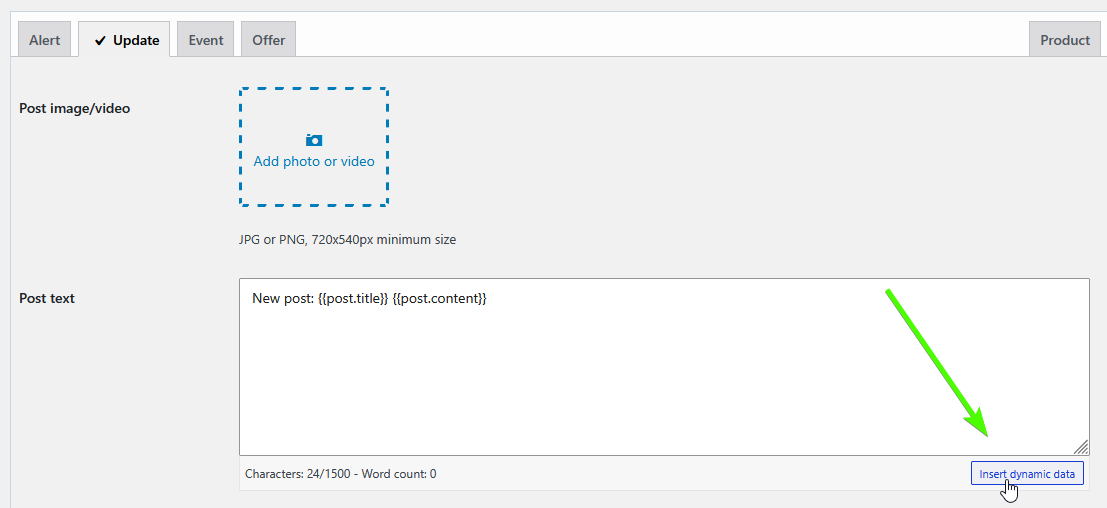
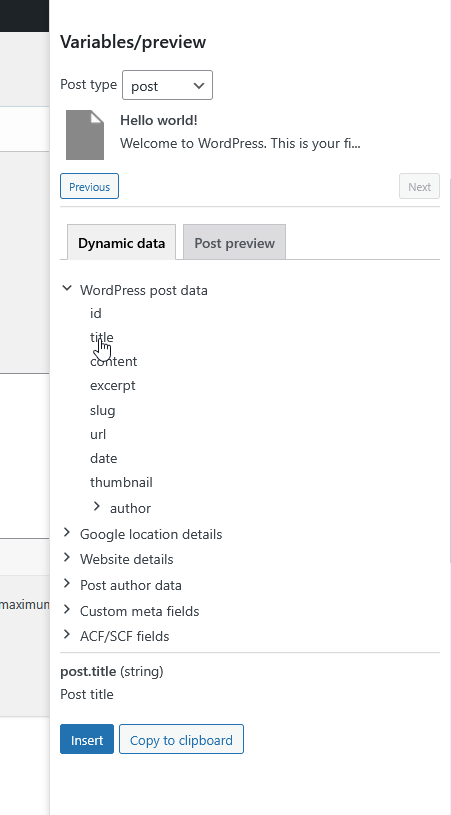
From there you can:
- browse available data (posts, custom fields, WooCommerce, etc.)
- insert variables directly into your template
- see what each variable represents
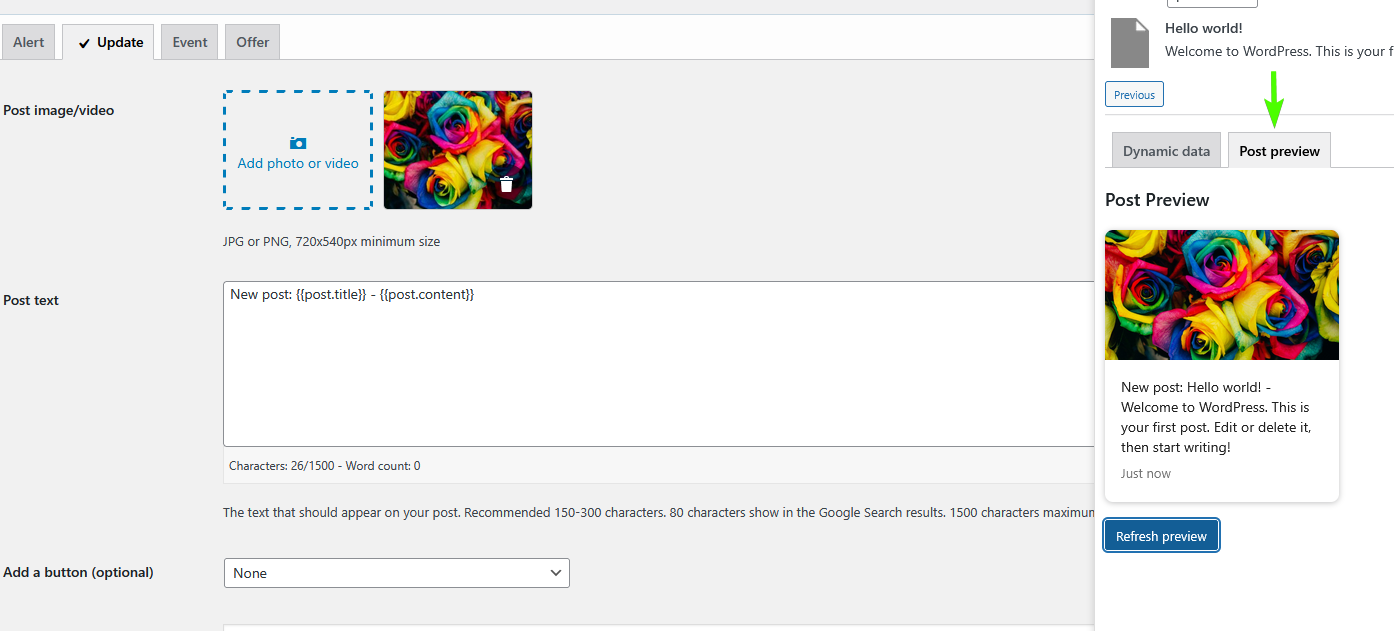
Live preview
Use the preview to see exactly what your post will look like before publishing.
This helps you:
- catch empty fields
- adjust formatting
- avoid surprises in your Google Business posts
Common use cases
1. Blog post → GBP post
{{post.title}}

{{post.excerpt}}

Read more:{{post.permalink}}
2. WooCommerce products
🛒 {{wc.product.title}}

Price: {{wc.product.price}}

👉 {{wc.product.url}}
3. Custom fields (ACF / SCF)
{{acf.event_date}} – {{acf.event_location}}

{{post.title}}
Working with sections (advanced)
You can also use sections to work with objects or lists.
Example:
{{#wc.product}}
	{{title}} – {{price}}
{{/wc.product}}
This is useful when working with structured data.
Tips
- Keep your templates simple, as Google Business posts are plain text
- Use the preview to test your setup
- If a variable is empty, nothing will be inserted
- Dynamic template variables work in any text field within the template (e.g. Event title, event dates, Call-to-action URL)
- Custom meta fields need to be allowlisted before the plugin can access them (Post to GMB > Settings > Misc)
Compatibility
Dynamic templates work with:
- WordPress posts and pages
- Custom fields (including ACF and SCF) Premium
- WooCommerce products Premium
Old %variables% still work
The old %variable% system is still supported.
You don’t need to change anything if your current setup works, but the new system gives you more flexibility and better control.
Getting started
- Open your auto-post template settings (Post to GMB > Settings > Auto-post settings)
- Click “Insert dynamic data”
- Build your template
- Preview the result
- Save
That’s it.
Final note
This feature is still evolving, so if you run into anything unclear or have ideas for improvements, feel free to reach out.